
Test
Payment methods interaction
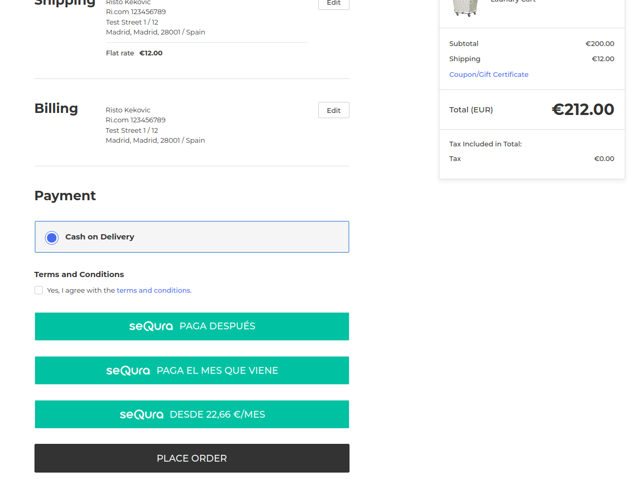
Once the SeQura integration is successfully connected to the shop, customers will be able to select SeQura payment methods on the checkout page as their payment method of choice. Each available SeQura payment method will be presented as a separate payment button on the payment step of the checkout process. In case you have enabled the terms and conditions checkbox on the checkout page, customers will also have to agree with store terms and conditions before submitting a payment with SeQura payment methods.
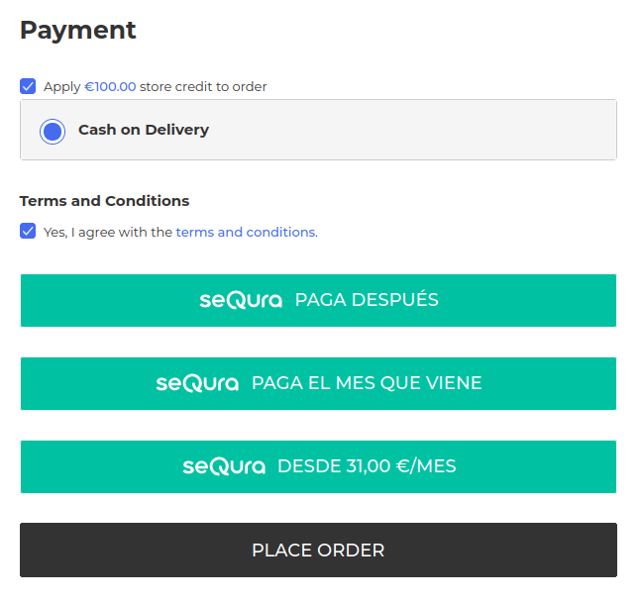
In case a registered customer has some store credit that he/she wants to use for paying for a part of the total order amount, SeQura payment methods also support that feature.
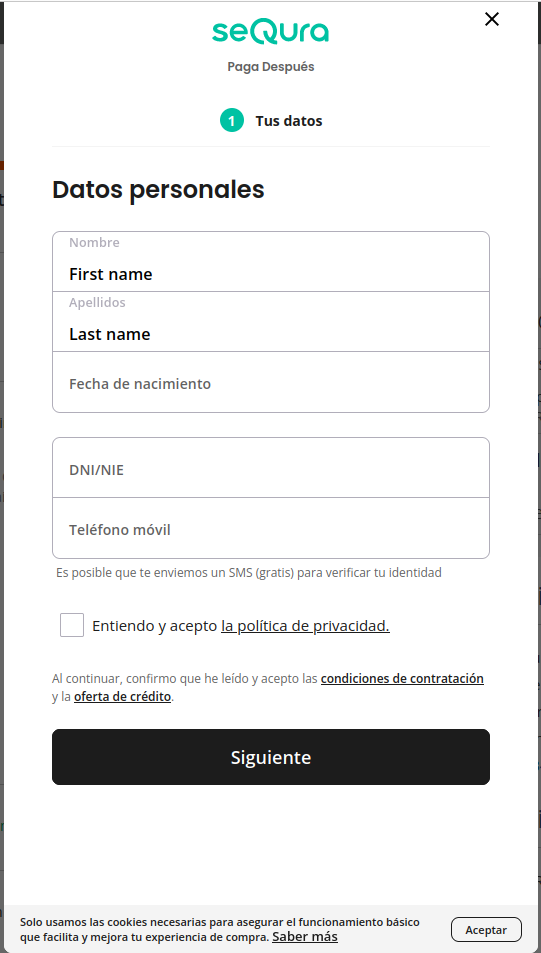
Once the customer has selected a SeQura payment method by clicking on the corresponding payment button, he/she will be presented with the SeQura identification form. After following the instructions described in the form, the payment process should be completed.
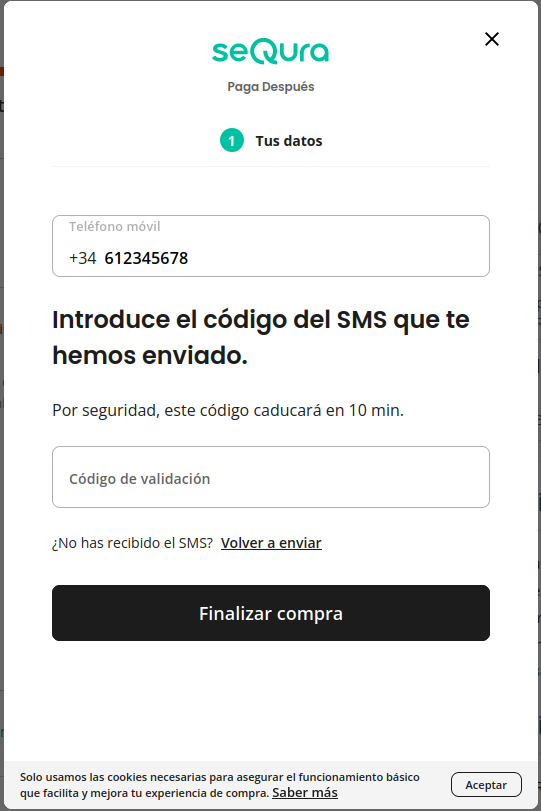
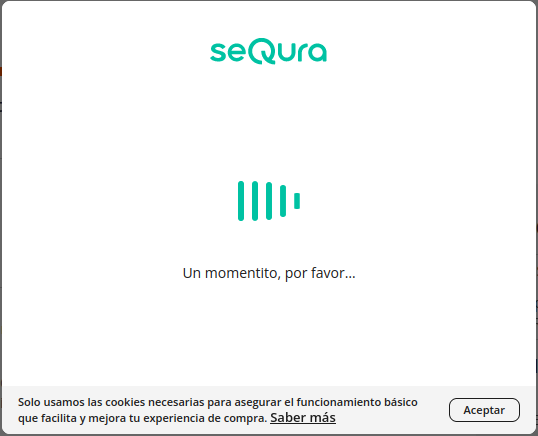
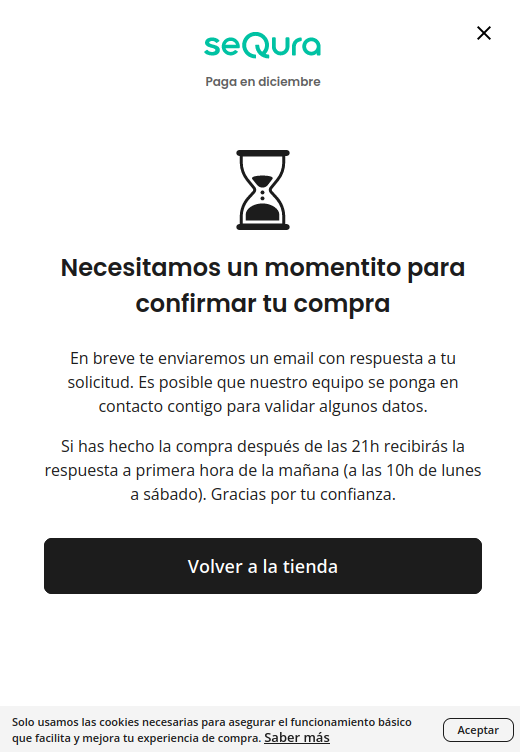
If a payment needs to be reviewed by SeQura before it can be processed and declared successful, as the last form view there will be a notification about payment revision, before redirecting to the thank you page.
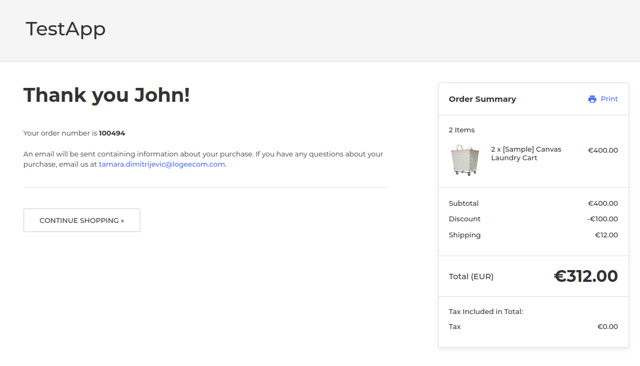
After a successful payment, customers should be presented by the order confirmation page.
Order management
SeQura order information
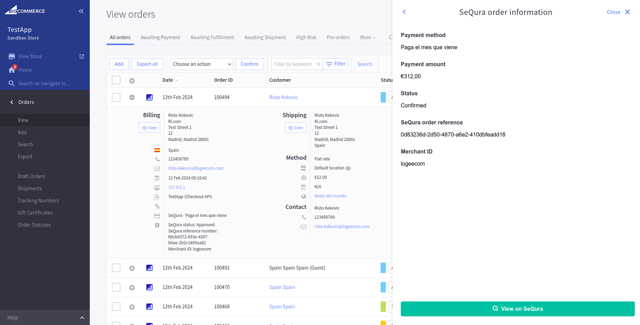
After someone places an order with one of SeQura payment methods, you will be able to view SeQura payment information for that order on the Order overview page. There are additional information about that order on the SeQura platform when you expand a specific order on the order overview page.
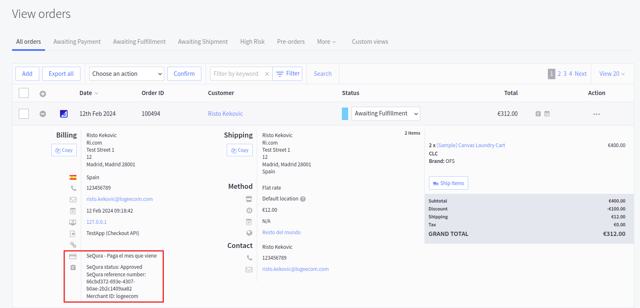
Additionally, in the actions menu you will also find an additional menu item for SeQura order information.
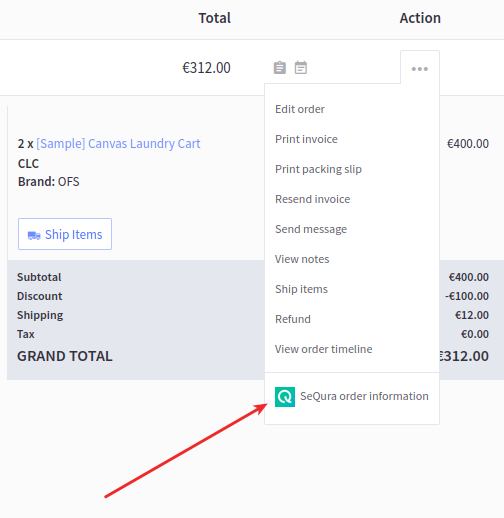
Clicking on this menu item opens up a side-window with more information about that order reference on SeQura, status, selected payment method, as well as a button that, when clicked, leads you to the order page in the SeQura portal.
Update order
You are able to update an order placed with the SeQura payment method in the shop system and see that change propagated to the SeQura portal. The integration propagates changes to the order total (which includes adding or removing items from the cart), billing and shipping address. These can be updated by going to the Actions > Edit order from the order overview page.
Ship order
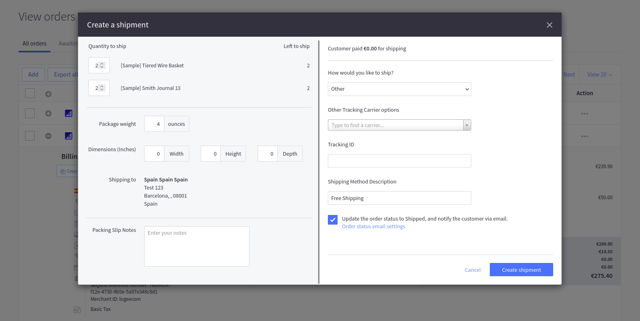
You are able to either partially or fully ship an order placed with the SeQura payment method using the native BigCommerce mechanism for shipping an order, by going to Actions > Ship items from the order overview page.
Refund order
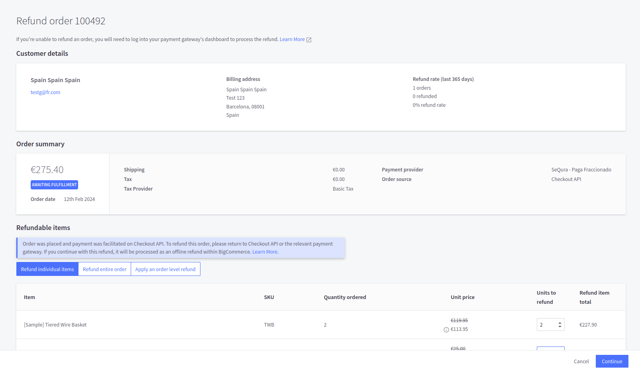
You are able to either partially or fully refund order items using the native BigCommerce mechanism for refunding order line items, by going to Actions > Refund from the order overview page.
Cancel order
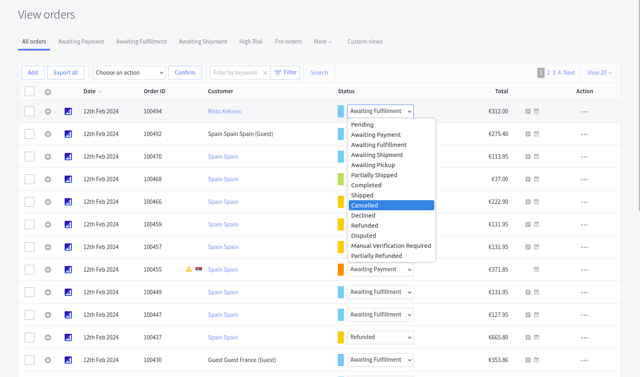
You are able to cancel an order made with SeQura payment methods using the native BigCommerce mechanism for canceling an order. Simply choose an order on the order overview page and change its status to Cancelled.
Transaction log
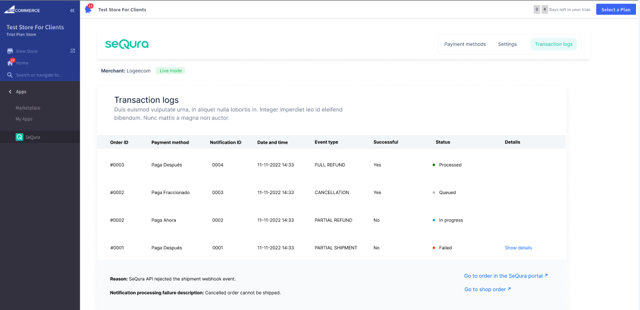
Since BigCommerce does not allow external payment processors to reject some order update action, and instead just informs those external processors of noteworthy events, if for any reason SeQura rejects a particular order update event, you will be able to see those incidents with descriptions and actions which allow you to see that order both in BigCommerce and in SeQura.
Updated 9 months ago