
Installation
Find the app
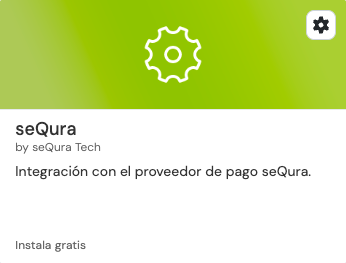
Once seQura grants your store access, open your Jumpseller admin panel and go to Integrations → Applications → Gallery. Search for "seQura" and you'll see the app card
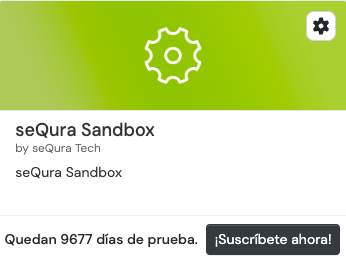
If you're starting with the test environment (recommended), install seQura Sandbox instead
Install and authorize
Click on the app to install it. Jumpseller will ask you to authorize the app to access your store — this lets seQura create the payment method and read the order details needed to process payments. Confirm the authorization.
The app page
After authorizing, you'll land on the seQura app page. Here's what you'll see:
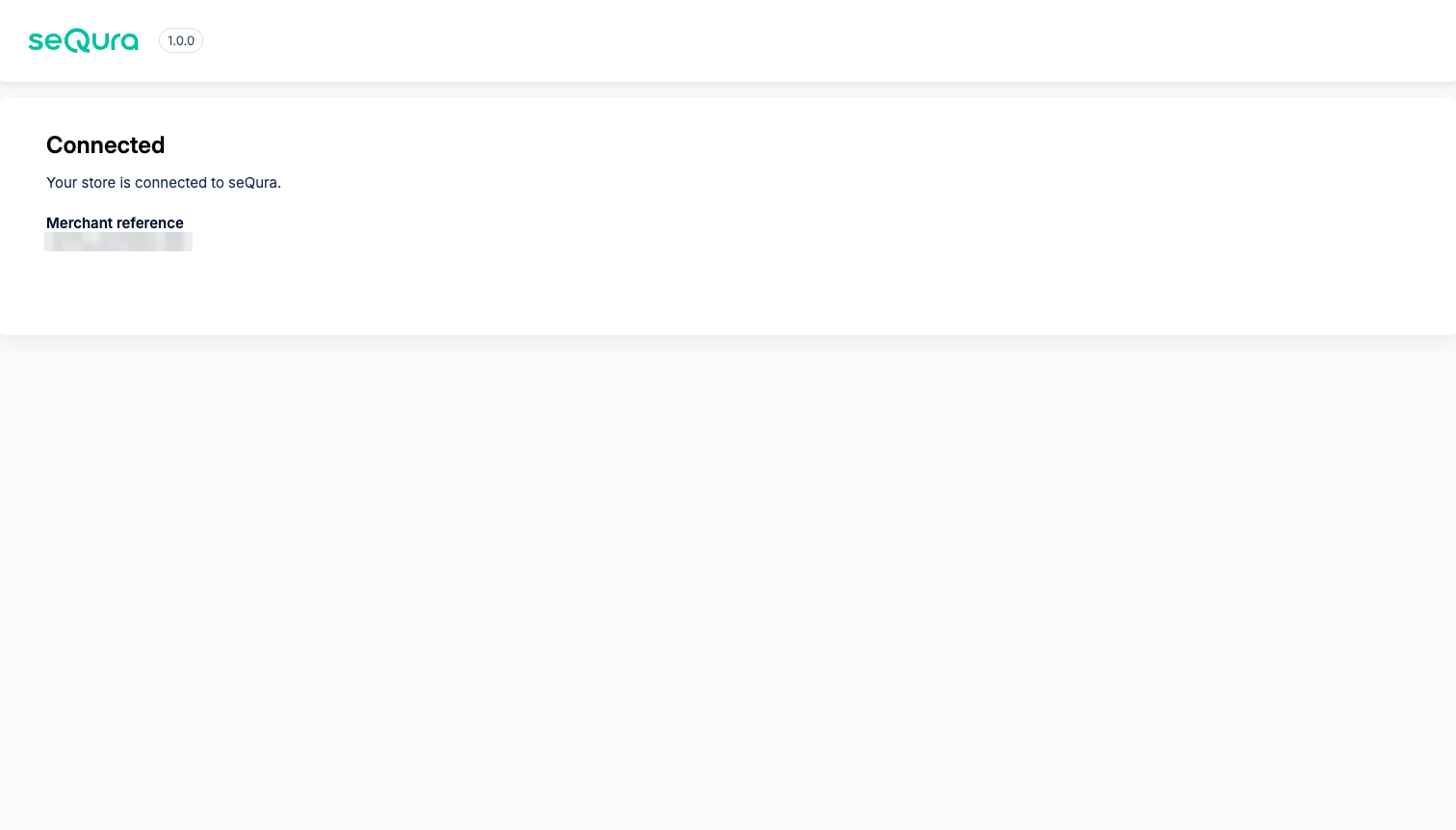
Connected — your store is linked to seQura. The page shows your merchant reference, the identifier of your seQura account. You're done!
In case of required account activation — your store doesn't have an active seQura account yet. Click the contact button on that page and we'll get you set up.
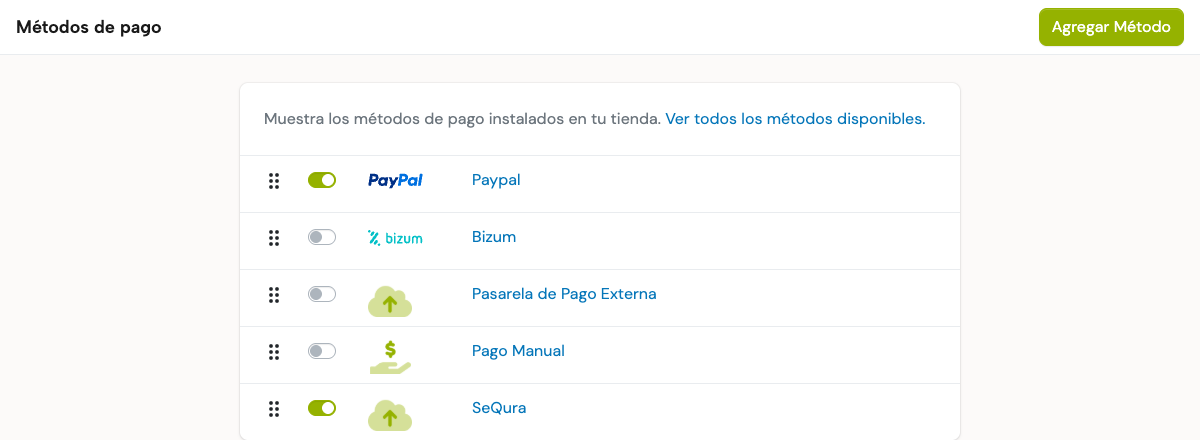
That's it. The app automatically creates a payment method called SeQura in your store, fully configured. You'll find it under Settings → Checkout → Payments
Updated 3 months ago